

You might be using the public resource directory to look for resources for a friend or family member. Or maybe you’re looking for resources for yourself and notice something that might help someone else.
After selecting a resource from the search results, you can click:
- Share to send the resource to someone by text, email, or copying a link.
- Print to print the resource information. This option is available only if you’re using a desktop.
- Download to download a PDF of the resource information. This option is available only if you’re using a mobile device.
Share Resources
You can share resources by text, email, or copying a link.
Share by Text
- Select the resource you want to share from the search results and click Share. The Share drawer opens to the Text tab by default.
- Enter your name.
- Enter the mobile number you’re sending this resource to.

- Select a language you want the resource information translated into.
- Click Share.
Share by Email
- Select the resource you want to share from the search results and click Share.
- Go to the Email tab.
- Enter your name.
- Enter the email address you’re sending this resource to.
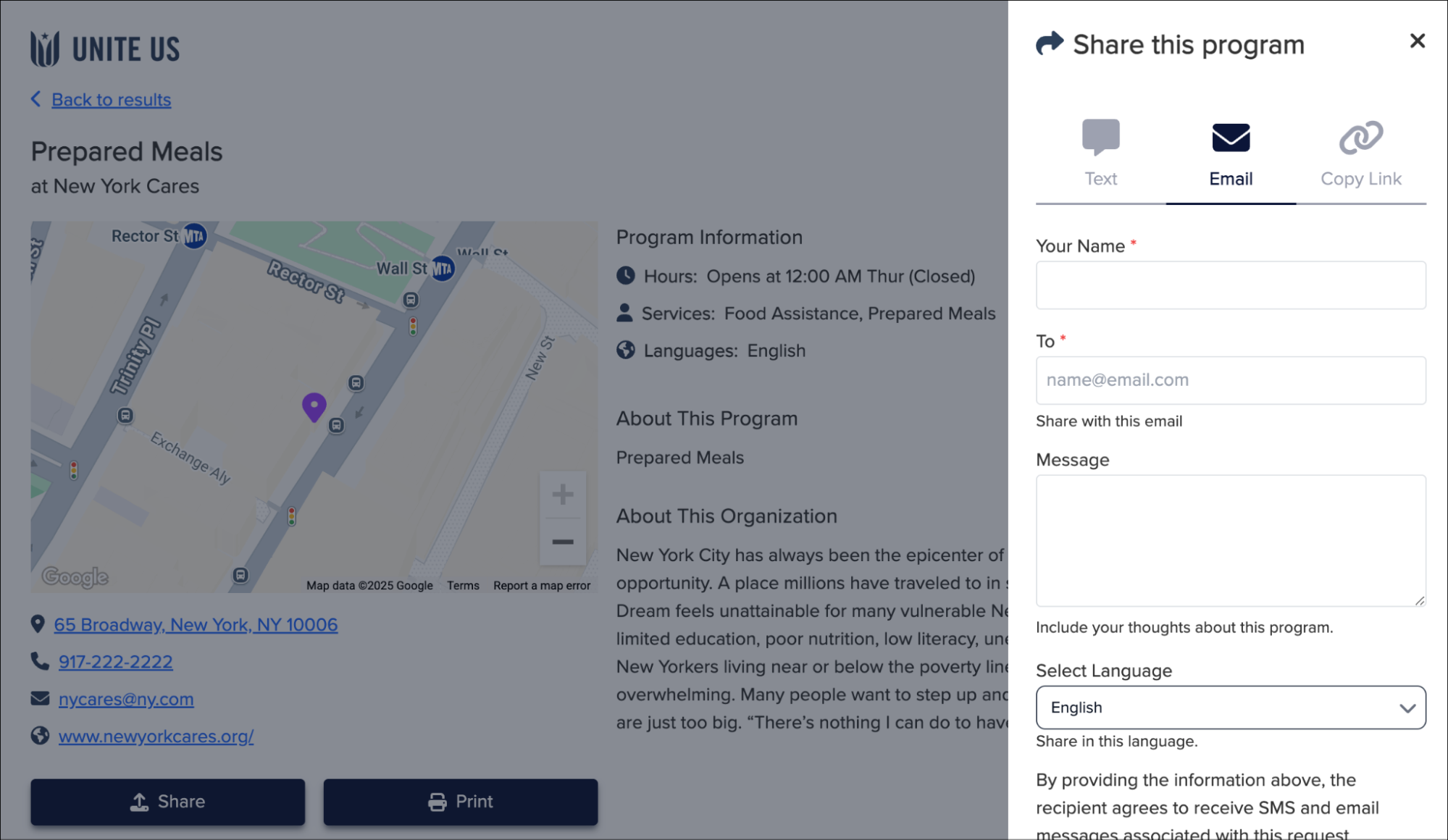
- Enter a message to include in your email. This field is not available if you’re sharing a resource that provides sensitive services.
- Select the language you want the resource information translated into.
- Click Share.
Share by URL
- Select the resource you want to share from the search results and click Share.
- Go to the Copy Link tab.
- Select the language you want the resource information translated into.
- Click Copy Link.
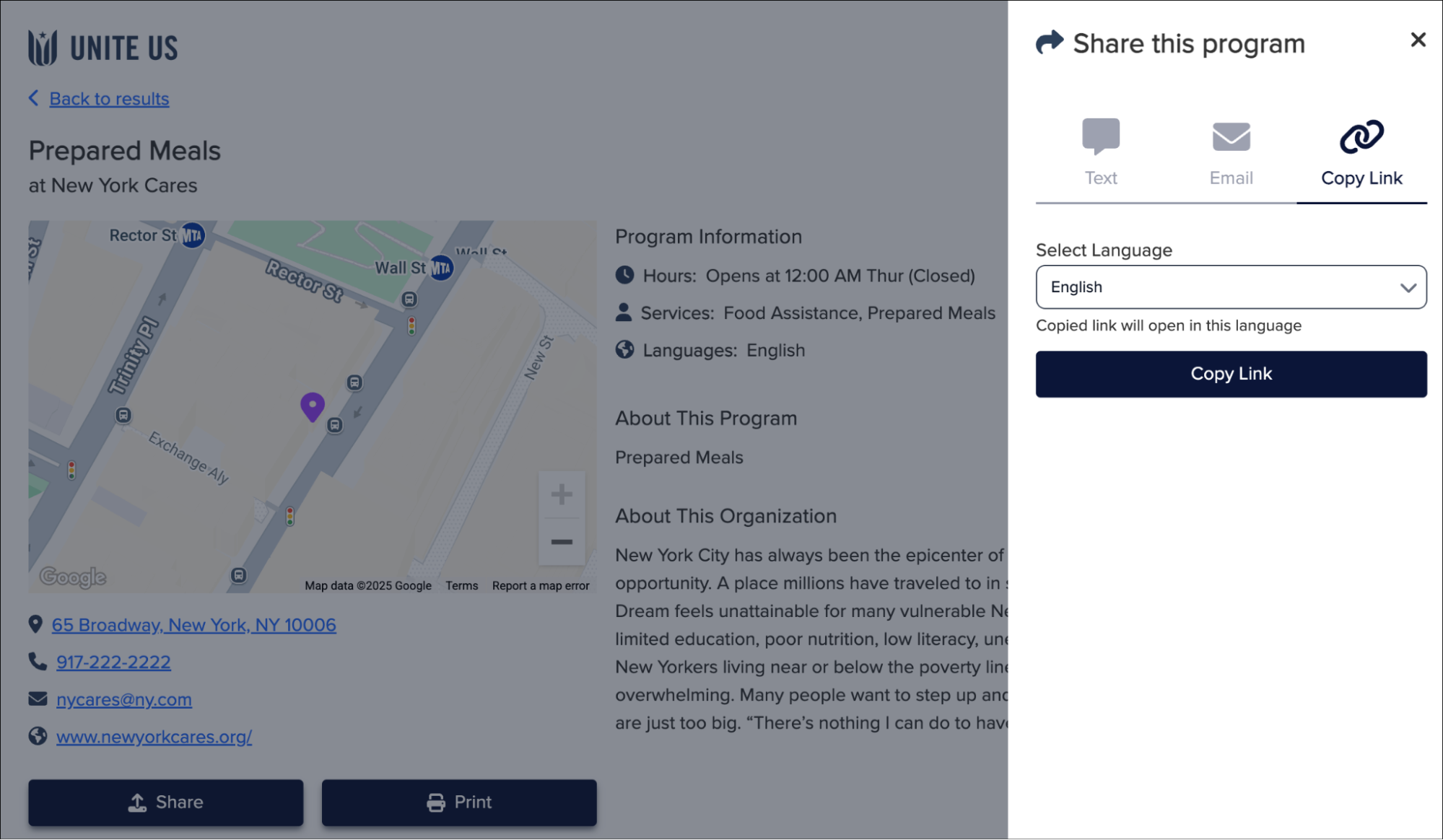
- Paste the link and share it using your preferred method.
Print Resources
If you’re viewing the public resource directory on a desktop, you can print a resource page in the same language you’re viewing the directory in. To print a resource:
- Select the resource you want to share from the search results and click Print.
- Choose your print options and click Print.
Download Resources
If you’re viewing the public resource directory on a mobile device, you can download a PDF of a resource page in the same language you’re viewing the directory in. To do so, select the resource you want to download from the search results and click Download.
You can also choose to print the resource information from the Download window, if your mobile device is connected to a printer. If you’re using an iPhone, you must use Safari to print. If you’re using another mobile device, you can use any internet browser.
Proprietary and Confidential